



Have you ever stared at your iPhone and wondered, “Why is everything suddenly… slower?” Photos take ages to upload. Apps tiptoe instead of sprint.
Chances are, your phone isn’t acting up at all. It’s simply doing exactly what you told it to do: protect your data by running with Low Data Mode iPhone turned on. In other words, it’s being helpful just in its own quiet, behind-the-scenes way. This tiny, often-overlooked setting works quietly in the background, trimming the digital extras so you can stretch your data a little further.
But here’s the twist: it doesn’t just save data. It shifts how your apps behave, when your iCloud syncs, how your videos stream, and even how often your phone chats with the internet. And if you’re traveling with an eSIM? It becomes less of a “nice to have” and more of a “why didn’t I use this sooner” lifesaver.
So let’s unpack what it really does, which apps feel it most, and how to make it work for you rather than against you.
What Is Low Data Mode iPhone, Really?
Low Data Mode first showed up in iOS 13, and it’s one of those small-but-mighty features Apple introduced for anyone who wants their data to last a little longer. It doesn’t block your internet. It simply instructs your iPhone to use the internet more thoughtfully. Low data mode iPhone is like a gentle reminder to “hey, maybe don’t download everything right this second.”
And with the iPhone 17 shifting to eSIM-only in more countries, this feature quietly becomes a bigger deal. When you’re juggling digital plans, using a travel eSIM with a tight budget, or turning your phone into a hotspot while roaming, Low Data Mode steps in as the practical friend who helps your data stretch just a bit further without you even thinking about it.
What Actually Happens When Low Data Mode Is ON?
When you switch on Low Data Mode, your iPhone quietly taps the brakes on anything that doesn’t need to be racing through your data plan. Think of it as your phone saying, “Let’s be smart about this.”
Here’s what it actually changes:
Background App Refresh takes a breather:
Apps only update when you open them, so there’s no silent data sipping happening behind the scenes. This means your phone stops trying to “help” by constantly checking for new content.
You get fewer surprise data drains, especially from apps you barely touch. And your battery gets a tiny bonus boost because your phone has less to juggle in the background.
Automatic Downloads Wait their turn:
Updates from the App Store, iOS, Apple Music, and Podcasts all pause until you’re safely back on a more generous Wi-Fi connection. It’s like your iPhone politely stepping aside instead of hogging your data.
You won’t miss anything; the updates simply queue up until you’re ready. Great news if you’re traveling or on a limited plan, you stay in control.
Streaming Scales Down a bit:
Video and music apps lower the resolution to something lighter on your data. You still get the content you want; it just arrives in a more data-friendly format.
It’s less “cinema mode” and more “quick watch,” but still smooth enough to enjoy. Perfect when you’re trying to stretch your data without giving up entertainment.
iCloud Backups hit Pause:
They’ll wait until Low Data Mode is off or until you’re back on a network that gives you more breathing room. Your phone isn’t backing up your entire life behind your back anymore.
This can save you huge amounts of data if you take a lot of photos or download big files. Your backup still happens, just… later, when it’s smarter.
Photos Stop Syncing for now:
iCloud Photos won’t push new uploads in the background, saving you from those hefty data spikes. Your camera roll stays intact locally until your connection is better.
If you’re traveling, this prevents accidental full-resolution uploads. You can still view and take photos, your phone just waits before sending them to the cloud.
Notifications get Selective:
The urgent stuff still comes through. The “nice to know” things might check in a little less often. Your phone decides what actually needs your attention versus what can wait.
You’ll still get your messages, but maybe not every single app alert. It makes your notification feed a little calmer, which honestly feels like a bonus.
Even System Services Slim down:
FaceTime, for example, may lower video quality to keep your usage in check. You can still make calls; they just get a little more efficient.
Your phone adjusts quietly in the background so you don’t blow through your plan. It’s your iPhone’s way of saying, “I’ve got your back, let’s stay connected without overspending.”
All of this happens automatically, with no extra work from you. It’s simply your iPhone doing you a quiet favor: stretching your data further without getting in your way.
5 Ideal Scenarios When You Should Use Low Data Mode on iPhone
Low data mode isn’t just a “nice-to-have.” It’s your little sidekick for stretching your data when it matters most. Here’s are 5 scenarios when you should use low data Mode on your iPhone:
Traveling Abroad with eSIMs
Prepaid travel eSIMs are brilliant but they often come with tight data limits. Low data mode quietly helps you make every MB count. It keeps background tasks in check so your data goes where you want it to go. It’s great for long trips where you need your plan to last, not disappear on day two.
Using Public Wi-Fi
Even “unlimited” Wi-Fi can get clogged in busy spots like cafés or airports. By limiting background activity, low data mode keeps your connection snappier. Your apps load what matters instead of fighting for bandwidth with a hundred other devices. It’s a small switch that makes public Wi-Fi feel a little less… public.
3. On Limited Data Plans
Got a capped plan? Avoid surprise throttling or overage fees by keeping apps from snacking on your allowance behind the scenes. This way, your data goes toward the things you actually use, not silent background downloads. It’s perfect when you’re watching your usage closely or budgeting for the month.
4. Poor Network Connectivity
Weak signal? Slow network? Low Data Mode trims unnecessary requests, so essential apps stay responsive when you need them. Your phone stops trying to push big files through a tiny, struggling connection. Think of it as your iPhone saying, “Let’s focus on what we can handle right now.”
5. End of Billing Cycle
Running low on data before renewal? This mode lets your last few MBs stretch just a bit further. It cuts back just enough to help you survive the final days without a data blackout. It’s ideal for those “just hold on until midnight” moments.
How to Turn ON Low Data Mode: A Quick Step-by-Step Guide
Turning on low data mode is easier than it sounds, and you can do it separately for your cellular plan or each Wi-Fi network you use. Here’s the lowdown:
For Cellular Data:
- Open the Settings app.
- Tap Cellular (or Mobile Data).
- Select Cellular Data Options.
- Toggle Low Data Mode on.
If you’re using Dual SIM or multiple eSIMs, you’ll need to repeat these steps for each active plan. Think of it as giving each line its own little data-saving coach.
For Wi-Fi:
- Go to Settings > Wi-Fi.
- Tap the next to the network you’re currently on.
- Turn on Low Data Mode.
Heads-up: this setting only applies to the network you’re connected to. So, every time you hop onto a new Wi-Fi, give it the same gentle nudge to save data.
Cons of Using Low Data Mode on iPhone
Of course, there’s a little trade-off. When low data mode is on, here’s what you might notice:
- Apps won’t Refresh Automatically. That means notifications and messages could arrive a bit later than usual. This gives your phone a chance to conserve data for the apps you’re actively using.
- iCloud and Other Cloud Syncing Slow down. Your photos, files, and backups might take longer to update. It helps prevent large uploads from eating into your limited data allowance unexpectedly.
- Video and audio quality dips. Streaming your favorite shows or playlists may look or sound a little lower-resolution. The content is still watchable or listenable, it just uses less data to get to you.
- Updates take their time. Some app or system updates may not install right away.
Your phone queues them for later, so you stay connected without any data surprises.
Think of it as your iPhone hitting the brakes to save data. You’re sacrificing a little speed for a lot more control.
Which Apps Could Feel the Low Data Mode Effect?
Low data mode doesn’t cut you off from the internet, it just asks your apps to take it easy in the background. Here’s what that looks like for some popular apps:
- WhatsApp: Messages still come through, but photos and videos might wait until you tap them.
- YouTube & Netflix: Streaming quality drops to save data, so you may notice slightly lower resolution.
- Instagram & TikTok: Preloading slows, and auto-play may take a break.
- iCloud Photos: New uploads pause until you turn off Low Data Mode.
- Google Maps: Navigation keeps going, but offline map downloads might hit pause.
Think of Low Data Mode as a gentle coach. Your apps keep working, just more thoughtfully, so your data lasts longer.
Low Data Mode + SlickeSIM: The Ultimate Travel Combo
Traveling internationally? Pairing Low Data Mode with a SlickeSIM is basically a masterclass in smart connectivity. Here’s why:
- Save money, skip roaming fees. SlickeSIM let you stay online without the dreaded surprise charges. You pay only for the data you choose, so your trip doesn’t end with a bill that feels like a plot twist.
- Affordable and Flexible Data, Just for You. With Slick, data eSIM plans aren’t just affordable, they’re flexible too. These plans bend to fit your travel needs, instead of forcing you into rigid limits. Whether it’s a quick weekend getaway or a months-long adventure, SlickeSIM make sure you stay connected in over 150 countries without the stress.
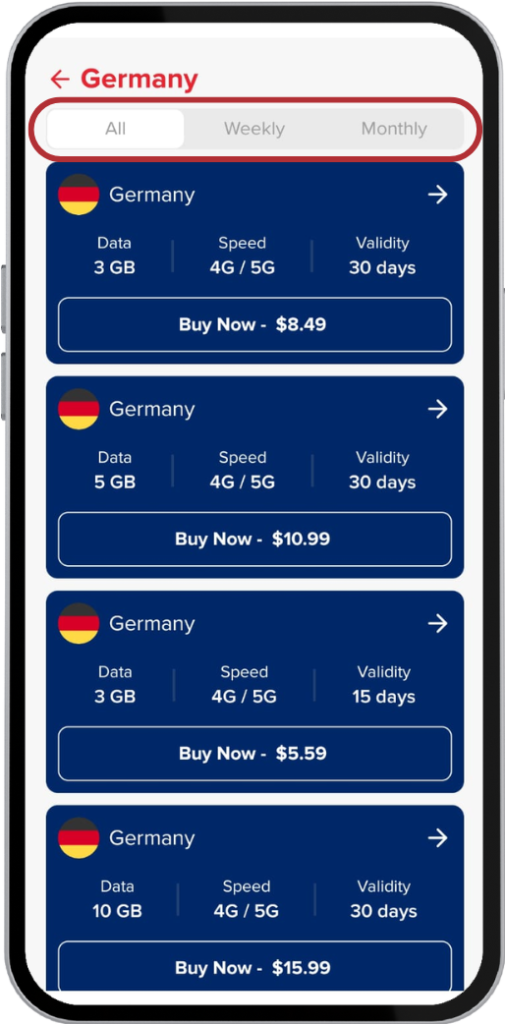
- Know exactly what you’ve got. SlickeSIM give full visibility into your allowance, and Low Data Mode helps you make every MB count. You’re not guessing how much data is left or fearing a surprise charge. It puts you fully in control, especially when you’re hopping between countries or relying on limited travel plans.
- Keep essential apps running. Email, messaging, maps, all still work. Heavy updates? They patiently wait for Wi-Fi. You stay connected to what matters without draining your data on things you didn’t ask for.
- Support when you need it. SlickeSIM include 24/7 help, so you’re never left stranded if something goes sideways. Whether it’s activation trouble or signal issues, someone’s always available to assist. It’s the kind of safety net that makes international travel feel a lot less stressful.
- Stretch your data. Low Data Mode pauses background activity, so your plan lasts longer. You avoid those sneaky background processes that silently nibble at your data. This gives you more room for the things you actually care about, like maps, messaging, and staying connected on the go.
Together, Low Data Mode and a SlickeSIM mean no wasted data, no surprises on your bill, and a smoother travel experience. It’s like having a personal travel assistant for your internet.
Conclusion
Low Data Mode on iPhone might seem small, but it can make a big difference in how you use the internet. Turn it on for cellular or Wi-Fi, and you’ll cut down on background activity, stretch your data further, and help your iPhone work more efficiently.
Pair it with an eSIM, and it becomes a travel superpower. You stay connected, avoid surprise overages, and get the most out of your plan, whether at home or exploring abroad.
FAQs
How do I Turn on Low Data Mode?
Go to Settings > Cellular (or Mobile Data) > Cellular Data Options, then toggle low data mode on. For Wi-Fi, tap the i next to your network and switch it on there too.
Is it Good to use Low Data Mode on iPhone?
Absolutely! It helps stretch your data, reduces background activity, and keeps your phone running efficiently, especially useful on limited plans or while traveling.
Does Low Data Mode increase the iPhone’s Battery life?
Yes! By reducing background activity, it eases the load on your iPhone, which can help your battery last a bit longer.
How do I Turn off Low Data Mode on my iPhone?
Simply follow the same steps you used to enable it, and toggle low data mode off for cellular or Wi-Fi. Your apps and updates will return to normal.